Monday, 20 April 2020

Windows 10 taskbar not working FIX!!!! Build 10074

  1. Press Windows Key + R on your keyboard.
  2. Key in PowerShell and hit Enter.
  3. Right click on the PowerShell icon on the taskbar and select Run as Administrator.
  4. Now paste the following command in the Administrator: Windows PowerShell window and press Enter key:
  5. Get-AppXPackage -AllUsers | Foreach {Add-AppxPackage -DisableDevelopmentMode -Register "$($_.InstallLocation)\AppXManifest.xml"}
  6. NOW for the important part ! Locate to :  C:/Users/name/AppData/Local/ and delete the TileDataLayer folder. Should fix everything immediately, no reboot necessary. Let me know how it works for you, it did for me! And remember to clean the recycle bin after you deleted the folder and give it 1min then everything is back to normal !

Sunday, 12 April 2020

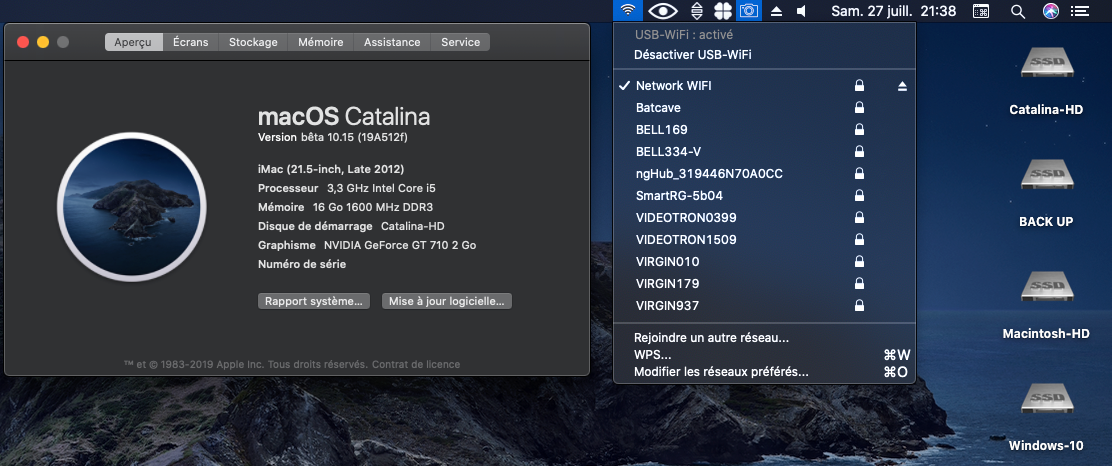
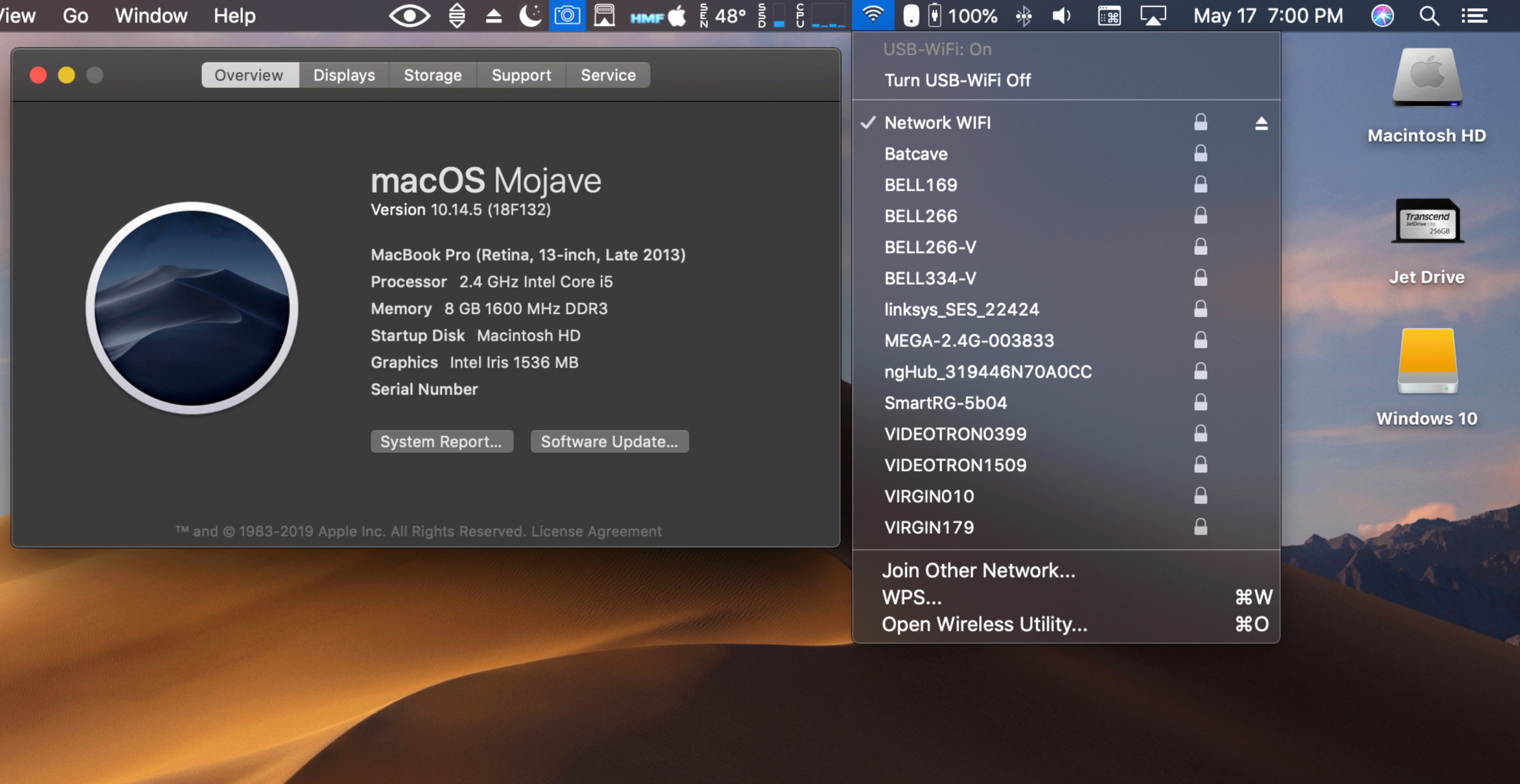
Wireless USB Adapter Support macOS

https://github.com/chris1111/Wireless-USB-Adapter

Wireless USB Adapter

Welcome to Wireless USB Adapter

Support macOS Catalina 10.15, macOS Mojave 10.14, macOS High Sierra 10.13, macOS Sierra 10.12, OS X El Capitan 10.11, OS X Yosemite 10.10, OS X Mavericks 10.9

  • Release Update 07 March 2020 New Driver and Utility

Drivers for Realtek 802.11n and 802.11ac USB Wi-Fi adapters

Packages for macOS (Real Mac) working also for Hackintosh PC or Laptop

Thanks to airomeo for Translation(Simplified Chinese) zh-Hans for Wireless Utility

Known Working and testing adapter

  • Archer T2U NANO
  • Archer T3U
  • ArcherT4U V3
  • Archer T9UH V2
  • ASUS USB AC68
  • ASUS USB-N13
  • EDIMAX EW-7722UTn V2
  • EDIMAX_EW-7822ULC
  • EDIMAX EW-7612Uan V2
  • EDIMAX N300
  • EDIMAX EW-7811Un
  • Linksys WUSB6300
  • Linksys WUSB6400M
  • Netgear A7000
  • Sitecom WLA7100
  • TL-WN823Nv3
  • TL-WN823Nv2
  • TL-WN725Nv3
  • TL-WN723Nv3
  • TL-WN722Nv3
  • TL-WN821Nv6
  • TL-WN822Nv5
  • TRENDnet N150 Micro

Friday, 6 March 2020

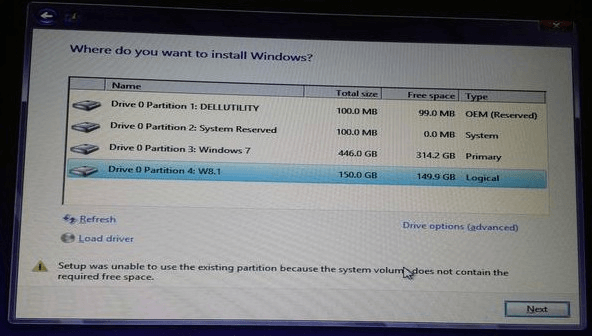
Fixed - Setup Was Unable to Use the Existing Partition
https://www.minitool.com/partition-disk/setup-cannot-use-system-partition.html

Receive an error message "Setup was unable to use the existing partition because system volume does not have required free space"

You can clearly see this 100MB system partition only has 0 free space left so that it does not contain the required free space

Setup was unable to use the existing partition

Dual Boot Mac OS X and Windows


To solve setup was unable to use the existing partition windows 10 Bootcamp issue, you can search on the internet to see whether there is partitioning tool for Mac to enlarge the system partition without data loss.
Disappointingly, so far we haven't found such a program. If you discover one, please share it with us so as to help more people. Much appreciate!
However, if you don't want to use third-party partitioning program, you'll need to delete both EFI partition and Mac OS partition, then reinstall Mac system without creating the EFI system partition or creating a larger EFI partition, and next install Windows to Bootcamp partition.

How to Download a Windows 10 ISO Without the Media Creation Tool


How to Download a Windows 10 ISO Without the Media Creation Tool

https://www.howtogeek.com/427223/how-to-download-a-windows-10-iso-without-the-media-creation-tool/

One exception is the HeiDoc.net Windows ISO Downloader tool, which lets you get the official Windows 10 ISO download from Microsoft. The program doesn't come from Microsoft but it does grab the ISO directly from Microsoft's website (software-download.microsoft.com), so unlike a torrent site or other file sharing method, it's most likely safe and can be a good alternative if Microsoft's tool (above) didn't work for you.

Friday, 28 February 2020

Hackintosh setup

Catalina - Audio ALC1220 
https://www.tonymacx86.com/threads/catalina-audio-alc1220.285174/


GUIDE TO FRESH INSTALLING MACOS CATALINA ON A HACKINTOSH (10.15 UPDATE)

https://hackintosher.com/guides/guide-to-fresh-installing-macos-catalina-on-a-hackintosh/

  • Coffee Lake (8th Gen) Mac mini 8,1 or iMac 19,2

HOW TO MAKE A MACOS 10.15 CATALINA FLASH DRIVE INSTALLER


ROG-STRIX-z370-i-Catalina-hackintosh
https://github.com/nian0114/ROG-STRIX-z370-i-Catalina-hackintosh


How To Update Your Hackintosh / macOS to Catalina


UniBeast: Install macOS Catalina on Any Supported Intel-based PC

https://osxdaily.com/2018/09/29/download-full-macos-mojave-installer/

How to Create a macOS Catalina Public Beta Installation USB

https://www.tonymacx86.com/threads/how-to-create-a-macos-catalina-public-beta-installation-usb.278188/


Catalina update from Mojave stuck at apfs_module_start:1683


Missing SSDT-EC.aml file.
You just need to put SSDT-EC.aml in /EFI/CLOVER/ACPI/patched.

https://www.tonymacx86.com/threads/guide-usb-power-property-injection-for-sierra-and-later.222266/page-55#post-1728645

....


Thank you for the findings and for writing this guide RehabMan, I could make it work on my build! :clap:

I wrote a shorter guide for beginners not familiar with Hackintosh topics and the common inspector tools we use:
  • 1.) You can read "ioreg" several places but I cannot find a link or description at post #1 what ioreg actually is... So if you're wondering how you can view ioreg, there is an application called IORegistryExplorer (version 2.1 !), which you can download from here: https://www.tonymacx86.com/threads/guide-how-to-make-a-copy-of-ioreg.58368/ If you open it up it will show you a list in alphabetical order.. Look for the name "EC" (Embedded Controller), it will be before the FAN labels... If you can find the element called "EC" in there, continue with step 5.)
  • 2.) If the "EC" element is not there in the IORegistryExplorer, you need to check if you have EC0 or the H_EC name (or neither) under the hood in so called ACPI. There is another application to check that: MaciASL. It's also not mentioned in post #1, you can download it from here: RehabMan / OS-X-MaciASL-patchmatic / Downloads — Bitbucket. Open it up, press Command + F, and search for these terms: "Device (H_EC)" and "Device (EC0)". You will hopefully find the H_EC or the EC0 code block (not both). Don't bother with the meaning of the code you see, you don't have to understand it. There will be a code block in a few lines down, starting with "Method (_STA, ....". If you see a "Return (Zero)" in this {} block, then it means it's ignored as per post #1.
    So what we done in this step: You have to check if you have EC0 or H_EC device or neither in MaciASL. If you find EC0 or H_EC you need to check if it's ignored: "Return (Zero)" or not. Remember your findings...
  • 3.) Now you know what you have under the hood...
    • If you didn't have EC0 or H_EC device or it's returning Zero in method _STA, then you need to copy the file SSDT-EC.aml (attached to this post) to your main macOS drive's EFI partition, under EFI/CLOVER/ACPI/patched.
    • If you have found the EC0 or H_EC device in IORegistryExplorer and it's not returning Zero in method _STA, then you need to add a Clover config patch in EFI/CLOVER/config.plist to rename "EC0 to EC" or "H_EC to EC". Choose which one you have. The patch can be seen in post #1, under the title: "Insuring AppleBusPowerControllerUSB loads". In the picture, the config.plist file was opened in an application called Xcode, available free from the Mac App Store.
  • 4.) Restart you PC. Once macOS is loaded, open IORegistryExplorer again and check weather you see EC in the list. If "EC" shows up, everything is fine, continue with step 5.) If the name "EC" is still not there in IORegistryExplorer, start it over from 1.), more carefully.
  • 5.) Check your system definition in a built in macOS app called "System Information". Under the "Hardware Overview" section, you can find your system definition at "Model identifier", for example: iMac 18,3
    • If you have newer system definition than Macbook8,1 or MacBookAir7,2 or MacBookPro12,1 or MacPro6,1 or MacMini7,1 or iMac15,2 THEN copy the file SSDT-USBX.aml (attached to this post) to your main macOS drive's EFI partition, under EFI/CLOVER/ACPI/patched.
    • If you use one of the system def listed above or older, then you have nothing to do, continue with step 6.)
  • 6.) Restart your PC. Once macOS is loaded, plug in an iPhone or iPad to your Hackintosh with a USB cable. Open System Information app and choose the "USB" section from the left sidebar. Click on the iPhone or iPad in the list. If you can see all 4 lines you're won! ;)
    • Current Available (mA):
    • Current Required (mA):
    • Extra Operating Current (mA):
    • Sleep current (mA):
If all 4 lines are there, it's the obvious indicator of working USB power under macOS.
Hope this post will help others to understand the process described in post #1.

Attachments


ERROR SHOW [IGPU] HASH DATA FROM ME NEVER RETURNED

<dict>
    <key>Boot</key>
    <dict>
        <key>Arguments</key>
        <string>-disablegfxfirmware</string>
    </dict>
</dict>


Catalina -- DisplayPort not working after Mojave Update

Finally I solved, now is working like in Mojave with displayport.

I read the solution here https://www.tonymacx86.com/threads/displayport-not-working-after-mojave-update.264072/post-1843408

Change the system definition from iMac 17,2 to Mac Pro 6,1 and set Dayman for FB Name option at Graphics.
Problem solved by Changing System Definitions from iMac 17,2 to Mac Pro 6,1, now all Screens are working fine. I tried several system definitions and Mac Pro 6,1 works best. Screenshots of Clover Configurator below.

Bildschirmfoto 2018-11-02 um 23.38.34.png
 
Bildschirmfoto 2018-11-02 um 23.39.38.png